How to Save and Organize Browser Tabs Into Workspaces
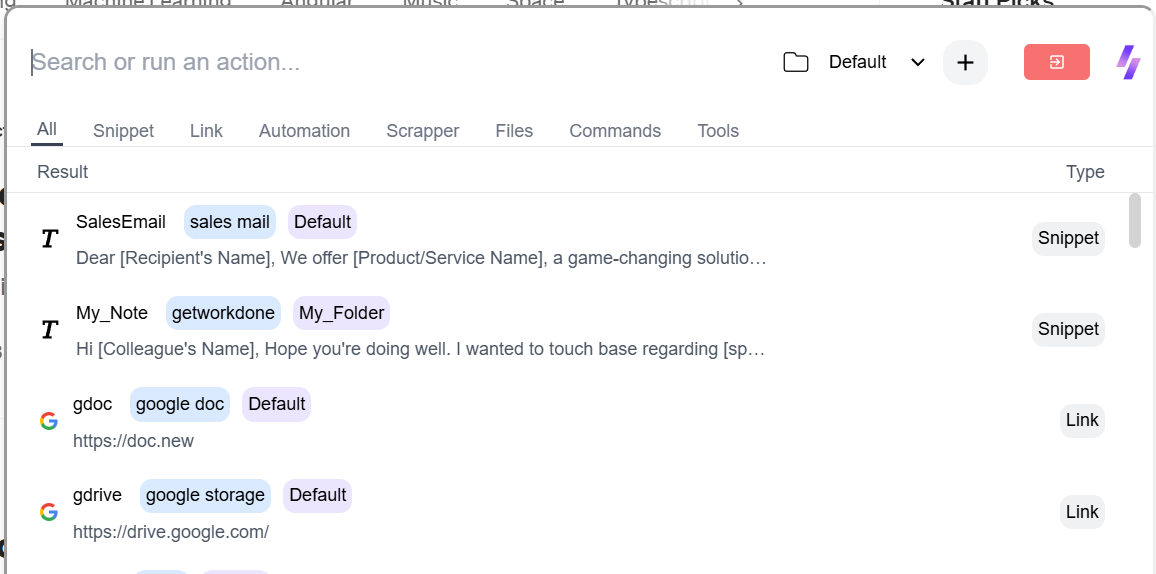
Save Chrome tabs into SuperCommands sessions, links, and workspace collections so recurring browser work stays organized and easy to reopen.
Links
Author
Blogs by Akshay A.
Save Chrome tabs into SuperCommands sessions, links, and workspace collections so recurring browser work stays organized and easy to reopen.
Create text shortcuts in Chrome with SuperCommands by assigning a Text Shortcut to a saved link, note, session, text expander, or command.
Switch between Chrome tabs with keyboard shortcuts, then use SuperCommands search to reopen saved sessions, links, and browser work.
Mute every tab in the current Chrome window with the SuperCommands Mute All Tabs command, then restore audio later with Unmute All Tabs.
Collect open Chrome tab URLs by saving the current tabs as a SuperCommands Link collection, then reviewing or copying the saved URLs from one place.
Open multiple URLs together in Chrome by saving them as a SuperCommands Link collection or Session, then launching them from search.
A practical way to collect webpage images with SuperCommands, plus small cleanup habits that keep downloads usable.
Bulk image download workflow for browser pages using SuperCommands, with simple habits for clean folders and fewer duplicate files.
A short workflow for exporting webpage tables with SuperCommands, plus checks that prevent messy CSV and spreadsheet imports.
How to avoid broken rows, merged cells, and weird pasted formatting when moving a webpage table into a spreadsheet.
A practical full-page screenshot workflow for Chromium browsers using SuperCommands and built-in browser habits.
Capture long webpages without manual stitching, with simple page-prep habits that make full-page screenshots cleaner.
A practical tab cleanup workflow using SuperCommands sessions, saved links, notes, and simple browser habits.
How to turn recurring browser setups into reusable tab sessions with SuperCommands and a few naming habits.
Keyboard-first browsing basics with SuperCommands, browser shortcuts, and a small set of habits that save clicks.
Create faster access to frequent websites using SuperCommands saved links, text shortcuts, and browser-level habits.
Useful Chromium browser habits with SuperCommands, keyboard shortcuts, tab cleanup, screenshots, and web data capture.
Ten practical browser habits using SuperCommands, shortcuts, sessions, snippets, screenshots, and cleaner tab workflows.
Fast keyboard habits for browser navigation, SuperCommands search, saved links, sessions, snippets, and tab cleanup.
Use one browser command bar to find saved sessions, links, notes, snippets, and commands without switching tools.
Turn frequent websites and deep app pages into searchable keyboard commands with SuperCommands.
A practical setup for using Chrome with fewer clicks through SuperCommands, saved links, sessions, snippets, and shortcuts.
Bring the Command+K habit to browser work with SuperCommands search, saved sessions, links, notes, and actions.
Use SuperCommands to run browser actions like screenshots, table export, image download, saved links, and sessions from search.
A practical no-code browser automation approach using SuperCommands, sessions, links, snippets, exports, and screenshots.
Ten practical browser automation habits using SuperCommands commands, sessions, snippets, screenshots, and exports.
Compare the best table downloader extensions for exporting webpage tables to CSV, Excel, Google Sheets, and everyday browser workflows.
Compare SuperCommands with Raycast for browser commands, quick links, snippets, notes, tab context, AI workflows, open-source access, and pricing.
Compare keyboard-first browser extensions for link hints, command bars, tab search, shortcuts, snippets, and no-mouse workflows.
Compare the best table extractor options for Chrome, Edge and Brave, including SuperCommands, Table Capture, Instant Data Scraper, Data Miner, and Web Scraper.
Compare SuperCommands with table downloader extensions for exporting webpage tables, saving browser work, and keeping core usage free and unlimited.
A practical guide to the best keyboard-first browser extension for no-mouse browsing, command search, saved links, snippets, tabs, screenshots, and exports.
Compare free table extractor options for browser users, including SuperCommands, Table Capture, Instant Data Scraper, Data Miner, and Web Scraper.
Find the best free command palette for Chrome, Edge and Brave, with a practical comparison of SuperCommands, Vimium, Surfingkeys, and Shortkeys.
Use SuperCommands Notes to save short text in workspace folders, add tags and shortcuts, and open the right note from search or Board View.
Use SuperCommands Links to save important websites, pages, and tab groups, then open them again from search, shortcuts, todos, or widgets.
Use Alt + S on an active webpage to search saved SuperCommands items and run page-aware commands like screenshots, image downloads, and table downloads.